Viewer Controls
The SuperSplat Viewer is what visitors use on every scene page, in every embed of one, and in viewers exported from the Editor. This page describes its built-in interface. For headsets, and AR on phones, see Viewing in VR and AR.
Loading
While a scene loads, the viewer shows its poster image, if it has one, and a loading bar with a percentage. A streamed scene appears as soon as it has enough detail to render and keeps refining as more streams in. Collision data keeps loading in the background, and walk mode becomes available when it arrives.
The camera then starts moving. If the scene plays its camera animation on open, that plays; otherwise the viewer plays a slow 20-second loop from the starting camera: an orbit around an object, or a gentle figure-eight inside a scene. Interacting with the scene stops it and hands the camera to the visitor.
The toolbar
The toolbar runs along the bottom of the viewer. From left to right:
| Button | What it does |
|---|---|
| Play / Pause | Plays or pauses the camera animation. Shown only when the scene has one. While it plays, a timeline above the toolbar shows the playhead; drag it to scrub, which pauses playback. |
| Orbit Camera | Switches to orbit mode. |
| Fly Camera | Switches to fly mode. |
| Walk Mode | Switches to walk mode, or back to the previous mode. Shown only on scenes that can be walked. |
| Settings | Opens the settings panel. |
| Controls | Opens the controls panel. |
| Info | Opens the info panel. |
| Enter AR / Enter VR | Starts an AR or VR session. Shown only where the device and browser support one. See Viewing in VR and AR. |
| Fullscreen | Enters or leaves fullscreen. |
Three seconds after the last interaction the toolbar dims, then hides; the next interaction brings it back. It stays up while a panel is open or the pointer is over it. In a narrow viewer the buttons shrink so that all of them, Fullscreen included, stay in view. On a phone or tablet, turning the device to landscape requests fullscreen and turning it back to portrait leaves it.
Camera modes
| Mode | Key | What it does |
|---|---|---|
| Orbit | 1 | Circles the camera around a focus point. The starting mode for objects. |
| Fly | 2 | Moves the camera freely through the scene. |
| Walk | 3 | Walks on the scene's floor at eye height (1.5 m), with gravity and jumping. Needs collision and a scene at least 5 m across. The starting mode for scenes that can be walked. |
| Animation | — | Plays the camera animation. Play selects it. |
The viewer treats a splat as an object when its starting camera is outside the splat's bounds, and as a scene when the camera starts inside. A scene that can't be walked starts in fly mode.
On a desktop, pressing W, A, S or D outside fly and walk mode switches to walk mode (fly mode where walking isn't available) and turns on Gaming Controls.
Gaming Controls
Fly and walk mode have two control schemes. By default, you click or tap where you want to go and drag to look around. With Gaming Controls on:
- On a desktop, the viewer captures the mouse: moving it looks around, and W A S D move. Esc releases the mouse and turns Gaming Controls off. G toggles them.
- On a touch device, a joystick appears for moving, and you drag to look around. Turn them on with the Gaming Controls switch in the settings panel.
The controls panel
Controls opens a panel above the toolbar that lists the controls for the current camera mode, for whichever you last used: mouse and keyboard, or touch. It updates as you switch modes or turn Gaming Controls on and off. The panel is open for a first-time visitor, and the viewer remembers when it's closed. H toggles it.
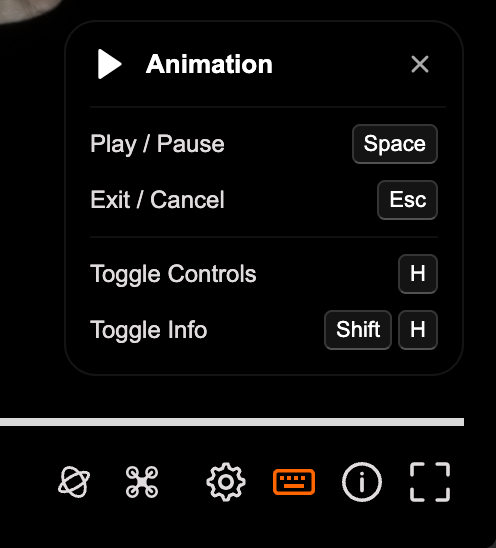
The panel lists these controls. Touch has none for the camera animation: any touch takes over.
Orbit mode
| Action | Mouse and keyboard | Touch |
|---|---|---|
| Orbit | Left-drag | One finger drag |
| Pan | Right-drag | Two finger drag |
| Zoom | Mouse wheel | Pinch |
| Set Focus | Click | Tap |
| Fly to Point | Double-click | Double-tap |
| Frame Scene | F | — |
| Reset Camera | R | — |
Fly mode
| Action | Mouse and keyboard | Touch |
|---|---|---|
| Fly To | Click | Tap |
| Look Around | Left-drag | Touch + drag |
| Pan | Right-drag | — |
| Focus Point | Double-click | Double-tap |
| Move | W A S D | Pinch / two finger drag |
| Run / Slow | Shift / Ctrl | — |
| Reset Camera | R | — |
With Gaming Controls on, Look Around is the captured mouse (or touch + drag), Move is W A S D (or the joystick), Vertical is Q / E, and Esc is Release Mouse.
Walk mode
| Action | Mouse and keyboard | Touch |
|---|---|---|
| Walk To | Click | Tap |
| Look Around | Left-drag | Touch + drag |
| Fly to Point | Double-click | Double-tap |
| Move | W A S D | — |
| Run / Slow | Shift / Ctrl | — |
| Reset Camera | R | — |
| Exit Walk | Esc | — |
With Gaming Controls on, Look Around is the captured mouse (or touch + drag), Move is W A S D (or the joystick), Jump is Space (or a tap), and Esc is Release Mouse.
Animation
| Action | Mouse and keyboard |
|---|---|
| Play / Pause | Space |
| Exit / Cancel | Esc |
The settings panel
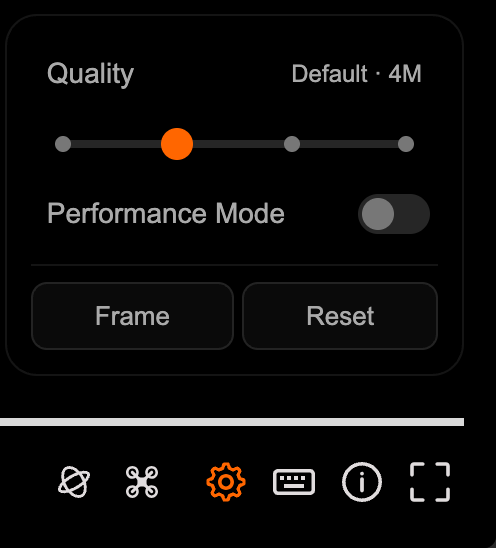
Settings opens a panel above the toolbar:
| Setting | What it does |
|---|---|
| Show Annotations | Shows or hides the annotation hotspots and navigator. Shown only on scenes with annotations. |
| Show Collision | Draws the scene's collision geometry over the splat (V). Shown only when the scene's collision can be drawn: voxel collision needs WebGPU. |
| Gaming Controls | Turns on Gaming Controls. Shown on touch devices; on a desktop, use G. |
| Quality | A slider with four positions, Performance, Default, High and Max, labeled with the Gaussian budget each gives, such as Default · 4M. See Quality. |
| Performance Mode | Switches to the viewer's alternative splat renderer. See Performance Mode. |
| Frame | Frames the whole scene, in orbit mode. |
| Reset | Resets the camera: in orbit mode to the starting view, in fly and walk mode to where you entered that mode. |
The viewer saves Show Annotations, Gaming Controls, Quality and Performance Mode in the browser, so they carry over to every scene the visitor opens on the same site.
Quality
The Quality slider sets the Gaussian budget, the most Gaussians the viewer draws at once in a streamed scene, from a ladder for the device: for example 2M, 4M, 8M and 16M on a desktop. At Performance, the viewer also renders at half resolution. Streaming & Performance lists every device's ladder and starting position, and explains how the budget works.
Performance Mode
Performance Mode draws the Gaussians with a different renderer that doesn't sort them. Its image refines over a few frames once the camera stops moving. It's off by default and offered only on WebGPU, and not in the Meta Quest or Pico browsers.
The info panel
Info (Shift+H) shows the viewer's version, the renderer (WebGPU or WebGL 2) and GPU in use, and the PlayCanvas Engine version. On a desktop it also lists the global keyboard shortcuts.
Keyboard shortcuts
| Key | Action |
|---|---|
| 1 | Orbit mode |
| 2 | Fly mode |
| 3 | Walk mode, or back to the previous mode |
| W A S D | Move; outside fly and walk mode, switches to walk (or fly) with Gaming Controls |
| G | Toggle Gaming Controls |
| V | Show Collision |
| F | Frame Scene (not in walk mode) |
| R | Reset Camera |
| Space | Play / Pause (Jump in walk mode) |
| H | Toggle the controls panel |
| Shift+H | Toggle the info panel |
| Esc | Release the mouse, leave walk mode, or close a panel |
Shortcuts follow the characters your keyboard layout types. On a layout that doesn't type Latin characters, such as Cyrillic or Greek, they fall back to the key positions of a US layout. W A S D always use the key positions.
Annotations
Scenes with annotations show a numbered hotspot for each one.
- Click or tap a hotspot to select it. The camera eases to the annotation's view, and its title and text appear in a panel beside the hotspot as the camera arrives. An annotation with neither title nor text shows no panel. Orbiting from there pivots near the annotated point, and the panel stays open.
- Step through annotations with the navigator's previous and next arrows, which show the annotation's number and title. The navigator appears when a scene has two or more annotations and wraps around at either end.
- Click elsewhere in the viewer to deselect. A drag doesn't count, so orbiting leaves the selection alone. The navigator keeps the last annotation, greyed out; click it to select it again.
Hotspots that part of the scene hides are faded, once the camera stops moving. Show Annotations in the settings panel hides the hotspots and the navigator.
See also
- Viewing in VR and AR — headsets and AR on phones
- Streaming & Performance — streamed scenes and the Gaussian budget
- Scene page — where visitors meet the viewer on superspl.at
- Viewer API — control the same features from your own code